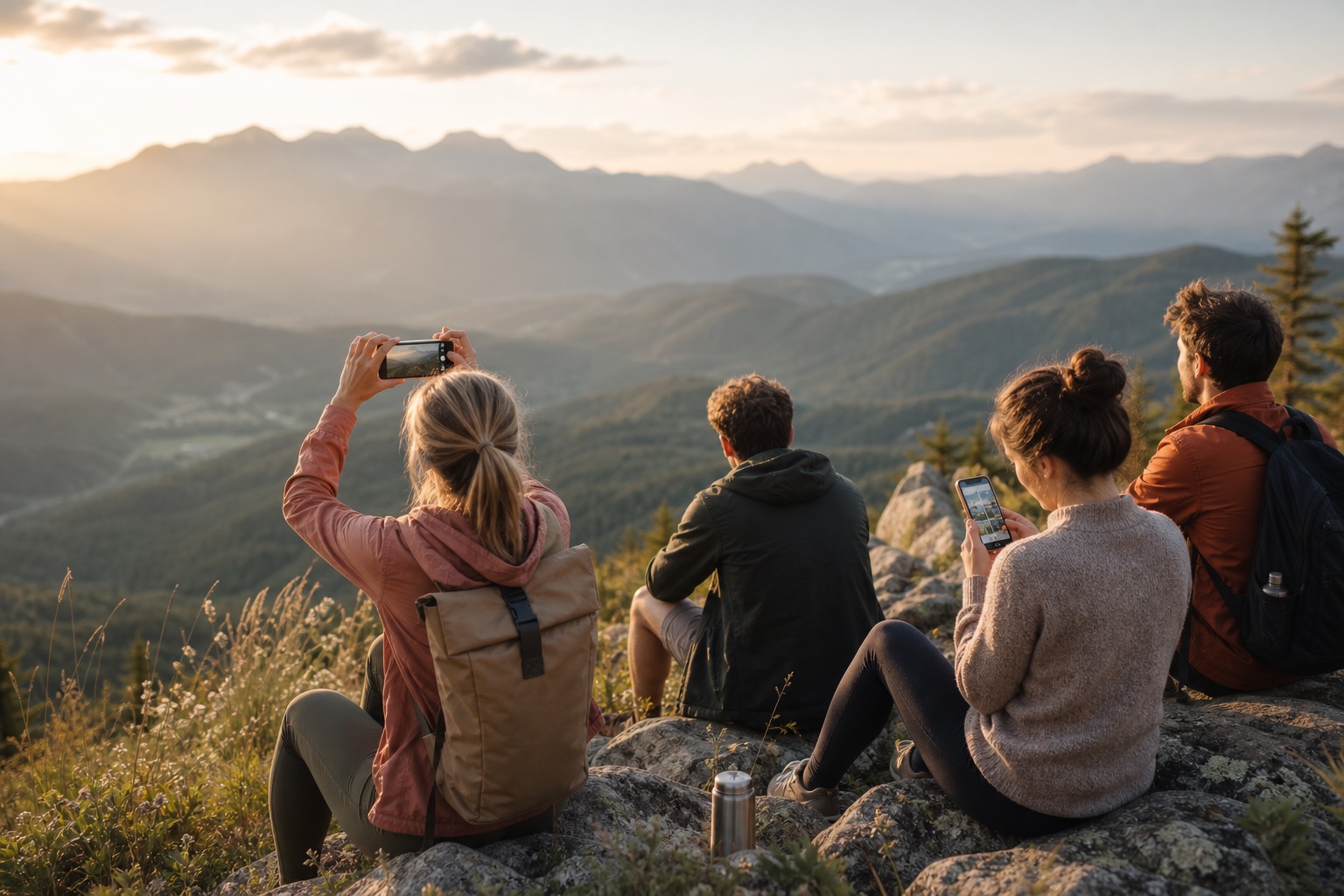
The best method is the one guests will actually use
The best way to collect event photos is to choose one primary destination before the gathering and make the instructions easy to find. If guests have to remember an unfamiliar process after they get home, many photos will remain on their phones.
Your choice depends on the event, the guest list, the sensitivity of the media, and what you want to do with the files afterward. A family birthday may work with a familiar group chat. A multi-day trip benefits from one organized album. A corporate event may need tighter access control and a clear owner for the final collection.
If you already know you want one central gallery, start with this explanation of a shared event photo album. If you are still comparing methods, use the tradeoffs below.
Five practical ways to collect photos from event guests
There is no universal winner. Compare the amount of effort required from guests, likely image quality, privacy controls, and the work needed to organize everything later.
1. WhatsApp or another group chat
Group chats are familiar and fast. They work well for small parties, meetups, and family gatherings where everyone is already in the same conversation. Guests can contribute during the event without learning a separate filing system.
The downside is organization. Photos become mixed with messages, reactions, and unrelated conversation. Some messaging workflows also reduce image or video quality unless the sender chooses a higher-quality or file-sharing option. Large videos can be awkward, and guests who are not in the chat may be excluded.
- Best for: small, informal groups that already use the same chat app.
- Main advantage: almost no setup or explanation.
- Main drawback: scattered media, inconsistent quality, and limited album structure.
2. Google Photos or another shared photo album
A shared album gives the group one recognizable place for photos and videos. It is usually easier to browse than a chat, and contributors can add media before, during, or after the event.
Check permissions before sharing the link. Decide who can view, who can contribute, and whether members can invite other people. Mixed device ecosystems and account requirements can create friction, so test the exact guest experience instead of assuming everyone will see the same screens.
- Best for: groups comfortable with the same photo ecosystem.
- Main advantage: familiar gallery browsing and a central collection.
- Main drawback: account, permission, and cross-platform friction.
3. Dropbox, Google Drive, or another cloud folder
Cloud folders are useful when you care more about receiving files than presenting a polished gallery. They can suit corporate events, community organizations, or projects where someone will edit, archive, or distribute the media later.
A folder needs a simple structure and carefully chosen permissions. Give contributors an obvious upload location, avoid a maze of subfolders, and keep the master archive protected from accidental moves or deletions. Some guests may find a file-management interface less intuitive than a photo album.
- Best for: teams that need downloadable source files and an archive.
- Main advantage: flexible file handling and folder organization.
- Main drawback: a less inviting guest experience and more permission management.
4. Ask guests to send photos afterward
Following up afterward requires no new tool, so it remains a useful backup. Send one clear request with a destination, a deadline, and a reminder of which moments you would especially like to receive.
It is unreliable as the main plan. Attention drops quickly after an event, people forget, and the host has to chase separate messages and downloads. If this is your only method, expect more sorting and fewer contributions.
- Best for: filling gaps or requesting a few specific photos.
- Main advantage: no setup before the event.
- Main drawback: low urgency and substantial follow-up work.
5. Use an event-specific shared photo album
An event-specific album is designed around one gathering rather than a general chat or storage folder. The host creates the event, shares a joining method, and asks attendees to add their photos and videos to the same event space.
This can reduce sorting and make the collection easier to revisit, but only if the joining process suits your audience. Confirm supported devices, whether contributors need accounts, available privacy settings, storage limits, pricing, and how you can access the media later. Do not promise guests a no-app or anonymous flow unless the product explicitly supports it.
- Best for: weddings, parties, trips, conferences, and gatherings with many contributors.
- Main advantage: one event-focused place for contributions and viewing.
- Main drawback: guests may need to use a tool they do not already know.
Choose a method that fits the event
For a wedding, prioritize clear instructions, privacy, and contributions during the day; this wedding guest photo sharing guide covers that use case in more detail. For a birthday or meetup, a familiar chat may be enough if the group is small. For a trip, choose a shared album that remains useful across several days and locations.
Corporate events need an owner, an approved sharing method, and rules for photos containing attendees, presentations, badges, or internal information. For any event involving children, private homes, or sensitive conversations, choose access control over public convenience.
- Small informal group: use the tool everyone already checks.
- Large social event: use one event album and repeat the joining instructions.
- Multi-day trip: use a persistent collection that stays organized over time.
- Corporate or community event: define ownership, permissions, and retention before inviting uploads.
Before the event: remove friction early
Set up the destination and test it from a second phone before sending invitations. Upload a sample photo, confirm that the right people can view it, and check what a new contributor must do. A five-minute test is easier than troubleshooting while the event is underway.
Tell guests what you are collecting and why. A short message such as “Add your favorite photos and short videos here so everyone can revisit the day” is clearer than sending a bare link with no context.
- Choose one primary collection destination and one backup contact method.
- Assign a host or organizer to monitor access and answer questions.
- Decide whether the collection should be private, public, or limited to invited people.
- Test photo and video uploads, permissions, and notifications.
- Put the joining link, code, or instructions in invitations and event messages.
- Explain whether guests may share the album or event link with others.
During the event: ask at the right moments
Guests contribute when the prompt is visible and timely. Include the instructions near check-in, on a table card, in the event program, or in a pinned group message. For a trip, pin the collection method in the itinerary chat. For a corporate event, include it in the attendee information or closing slide.
Use one or two friendly reminders rather than repeated announcements. Ask after a moment when people naturally take photos, such as the ceremony, cake cutting, group activity, keynote, or final dinner.
- Keep the joining instructions short enough to follow at a glance.
- Ask a few enthusiastic attendees to add the first photos and model the process.
- Make help available for guests who are less comfortable with technology.
- Avoid displaying private access details where uninvited people can copy them.
After the event: close gaps and organize the collection
Send one follow-up while the event is still recent. Thank guests, repeat the same collection link or instructions, and give a reasonable deadline. Ask for missing moments specifically—such as setup, speeches, team photos, or the journey home—rather than requesting “anything else” without direction.
Then remove obvious duplicates, separate personal or sensitive files, and create a reliable archive. Keep an untouched master copy before editing filenames, moving folders, or creating a highlight selection.
- Confirm that late contributors still have the correct access.
- Back up the final collection somewhere controlled by the organizer.
- Organize by day, activity, location, or event stage—not by contributor alone.
- Preserve original files when quality matters for printing or editing.
- Tell guests how long the shared collection will remain available.
Protect quality, privacy, and consent
Photo and video quality depends on both the original capture and the transfer method. If the files may be printed or professionally edited, ask guests not to send screenshots and choose a method that can retain the source file. Keep a separate highlight album if you also want a smaller collection that is easy to browse.
Privacy is a workflow, not just a toggle. Tell attendees who can see contributions, whether they may repost them, and whom to contact for removal. Use invitation-only access for sensitive gatherings, review member access after the event, and read this guide to private event photo sharing when the guest list or subject matter requires more control.
At workplace and community events, follow the organizer’s consent policy. Do not assume that attendance means permission to publish someone’s image publicly. Keep private sharing and public promotion as separate decisions.
Where PhotoTrail fits
PhotoTrail is an Android event photo and video app for creating public or private events, inviting people, and keeping contributions in one shared trail. Hosts can share an event link or code, and the current app also supports an optional QR code that leads into the event joining flow.
Guests join the event and contribute photos and videos from the app. PhotoTrail does not currently advertise browser-based uploads, anonymous uploads, guest uploads without accounts, iOS availability, unlimited storage, AI features, or face recognition, so plan around the documented Android experience.
If that workflow fits your group, review how PhotoTrail works, check the current pricing information, and use the PhotoTrail FAQ to confirm access and sharing details before the event.
A simple recommendation
For most events, choose one central album before the day, test the guest experience, repeat the instructions at useful moments, and send one prompt afterward. Keep a group chat as a communication channel rather than the only archive.
The right system is not the one with the longest feature list. It is the one your guests can understand, your organizer can manage, and everyone will still be able to revisit when the event is over.